Increase Swap Size on a Raspberry Pi

Step 1: Check the Current Swap Configuration

sudo swapon --show
free -h

Step 2: Disable the Current Swap

sudo dphys-swapfile swapoff

Step 3: Edit the Swap File Configuration

sudo vi /etc/dphys-swapfile
# CONF_SWAPSIZE=2048

Step 4: Regenerate and Enable the Swap File

sudo dphys-swapfile setup
sudo dphys-swapfile swapon

Step 5: Verify the New Swap Configuration

sudo swapon --show
sudo reboot

Install Zabbix 7.0 LTS-Raspberry Pi OS 12 (Bookworm)-Server, Frontend, Agent-PostgreSQL-Apache

1. Install Zabbix repository:

wget https://repo.zabbix.com/zabbix/7.0/raspbian/pool/main/z/zabbix-release/zabbix-release_7.0-1+debian12_all.deb

sudo dpkg -i zabbix-release_7.0-1+debian12_all.deb

sudo apt update -y

2. Install Zabbix server, frontend, agent:

sudo apt install zabbix-server-pgsql zabbix-frontend-php php8.2-pgsql zabbix-apache-conf zabbix-sql-scripts zabbix-agent -y

3. Install and configure Postgresql:

sudo apt install postgresql postgresql-contrib -y

sudo systemctl enable --now postgresql.service

sudo passwd postgres

su - postgres

psql postgres

# ALTER ROLE postgres PASSWORD 'yourPassWord';
sudo vi +60 /etc/postgresql/15/main/postgresql.conf
# like below:
listen_addresses = 'localhost'          # what IP address(es) to listen on;

sudo vi +95 /etc/postgresql/15/main/pg_hba.conf
# like below:
# Database administrative login by Unix domain socket
local   all             postgres                                md5

# TYPE  DATABASE        USER            ADDRESS                 METHOD
# "local" is for Unix domain socket connections only
local   all             all                                     md5
# IPv4 local connections:
host    all             all             192.168.x.x/24            md5
host    all             all             127.0.0.1/32            md5

sudo systemctl restart postgresql
# test: psql -U postgres

4. Create initial database:

sudo -u postgres createuser --pwprompt zabbix

sudo -u postgres createdb -O zabbix zabbix

sudo zcat /usr/share/zabbix-sql-scripts/postgresql/server.sql.gz | PGPASSWORD='yourPassword' psql -U zabbix -d zabbix -h localhost

5. Configure the database for Zabbix server:

sudo vi +131 /etc/zabbix/zabbix_server.conf
# set password: DBPassword=password

6. Start Zabbix server and agent processes:

sudo systemctl enable zabbix-server zabbix-agent apache2
sudo systemctl restart zabbix-server zabbix-agent apache2

7. Open server’s port 80, 10051 and agent’s port 10050

8. Open Zabbix UI web page(ID: Admin, password: zabbix):

http://host/zabbix

9. Install windows client agent:

Download

4 Windows agent installation from MSI

Change zabbix_agent2.conf (write explicitly):

Hostname should be same as registered agent’s hostname in zabbix web console.

Server=
ListenPort=
ServerActive=
Hostname=
C:\Program Files\Zabbix Agent 2>zabbix_agent2.exe --config zabbix_agent2.conf --stop

C:\Program Files\Zabbix Agent 2>zabbix_agent2.exe --config zabbix_agent2.conf --start

10. Install Raspberry Pi OS client agent:

Download and install Zabbix Agent2

wget -c https://repo.zabbix.com/zabbix/7.0/raspbian/pool/main/z/zabbix-release/zabbix-release_7.0-1+debian11_all.deb

sudo dpkg -i zabbix-release_7.0-1+debian11_all.deb

sudo apt update -y

sudo apt install zabbix-agent2 zabbix-agent2-plugin-* -y

sudo vi +80 /etc/zabbix/zabbix_agent2.conf
sudo vi +88 /etc/zabbix/zabbix_agent2.conf
sudo vi +133 /etc/zabbix/zabbix_agent2.conf
sudo vi +144 /etc/zabbix/zabbix_agent2.conf

sudo systemctl enable --now zabbix-agent2
sudo systemctl restart zabbix-agent2

reference:

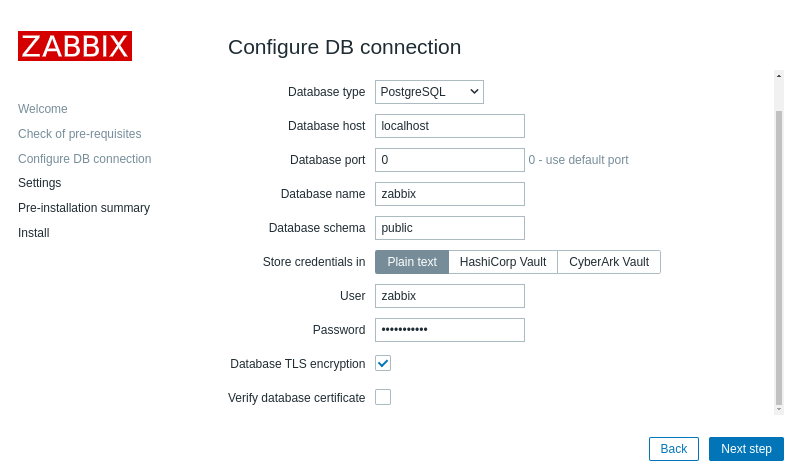
Download and install Zabbix

1 Login and configuring user

Unable to determine current Zabbix database version: the table “dbversion” was not found

Setting Up Mounting of a Windows Shared Folder on Ubuntu

Prerequisites:

  • A Windows PC with a everyone shared folder.
  • Enabling Sharing Services on Windows (SMB 1.0/CIFS File Sharing Support, SMB Direct)
  • A local user account on the Windows PC with access to the shared folder.
  • Ubuntu machine with administrative privileges.

Steps:

1. Install Required Packages:

sudo apt update -y
sudo apt install cifs-utils smbclient -y

2. Create Credentials File

sudo vi /etc/samba/credentials

then fill in:

username=your_username
password=your_password

then change the permission:

sudo chmod 600 /etc/samba/credentials

3. mount the shared folder:

sudo mount.cifs //yourIP/sharedFolderName /mnt/yourDirectoryName -o credentials=/etc/samba/credentials,uid=1000,gid=1000,vers=3.0

Ollama Installation

1. Install backend:

curl -fsSL https://ollama.com/install.sh | sh
sudo systemctl start ollama

2. Install frontend:

docker run -d -p [yourPort]:8080 --add-host=host.docker.internal:host-gateway -v open-webui:/app/backend/data --name open-webui --restart always ghcr.io/open-webui/open-webui:main

reference:

Download Ollama

Install Open WebUI

option:

download model: eg:

ollama pull michaelneale/deepseek-r1-goose

check downloaded model: eg:

ollama list

delete downloaded model: eg:

ollama rm mistral

run model: eg:

ollama run michaelneale/deepseek-r1-goose

Set to be externally monitored:

sudo vi /etc/systemd/system/ollama.service

[Unit]
Description=Ollama Service
After=network-online.target

[Service]
ExecStart=/usr/local/bin/ollama serve
User=ollama
Group=ollama
Restart=always
RestartSec=3
Environment="PATH=/home/krugle/.local/bin:/home/krugle/bin:/usr/local/sbin:/usr/local/bin:/usr/sbin:/usr/bin:/sbin:/bin:/usr/games:/usr/local/games:/snap/bin:/home/krugle/.cache/lm-studio/bin:/home/krugle/.cache/lm-studio/bin"
Environment="OLLAMA_HOST=0.0.0.0:11434" #you will add this line
Environment="OLLAMA_MODELS=/your/desired/path" #you will add this line

[Install]
WantedBy=default.target

You need to launch Ollama before you can pull or run models:

ollama serve

what models are currently loaded into memory:

ollama ps

3. WSL Port Forwarding (example)

This step allows external devices in your LAN (other PCs, phones, etc.) to access the services running inside WSL2. Without it, only the host machine can access Ollama or WebUI.

1) Check WSL internal IP

# Inside WSL terminal:
ip addr show eth0
hostname -I

Note the IP address like 172.22.xxx.xxx. Call it WSL_IP.

2) Add port forwarding

Run the following in Windows PowerShell (replace WSL_IP with the value you found above):

netsh interface portproxy add v4tov4 listenaddress=0.0.0.0 listenport=3000 connectaddress=WSL_IP connectport=3000

3) Allow firewall

Make sure Windows Firewall allows inbound connections for ports 3000.

Notes

  • Without this step, the services are only accessible from the host machine.
  • With this step, other LAN devices can access:
    • WebUI: http://Windows_IP:3000

Check the current state:

netsh interface portproxy show all

delete the config:

netsh interface portproxy delete v4tov4 listenport=3000 listenaddress=0.0.0.0

USB Drive Shows as Unformatted After Switching Between Windows and Ubuntu

Sometimes, a USB drive used in Ubuntu may become unusable after being inserted into a Windows system, displaying a message that it needs to be formatted. This issue can occur due to several reasons:

1.File System Metadata Corruption: Windows might modify the file system metadata if it detects inconsistencies, causing Ubuntu to be unable to recognize the drive.

2.Improper Unmounting: If the USB drive is not properly unmounted in Windows, it may not update the file system state correctly, leading to issues when it’s reinserted into Ubuntu.

3.File System Compatibility: Different operating systems manage file systems differently. Switching between Windows and Ubuntu can sometimes cause compatibility issues, especially with exFAT or NTFS file systems.

If your USB drive shows as unformatted in Ubuntu after being used in Windows, you can use PhotoRec to recover the data.

1. Installation.

sudo apt-get install testdisk
sudo photorec

2. In the PhotoRec interface, select your USB drive (e.g., /dev/sda) and press Enter.

3. Use the arrow keys to select the P exFAT partition and press Enter.

4. Select [ Whole ] to scan the entire partition and press Enter.

5. Select a target directory to save the recovered files, ensuring there is enough space available.

6. Confirm all options and press Enter to start the data recovery process.

gcalcli Command

Installation:

sudo apt update -y
sudo apt install gcalcli -y
  1. Create a New Project within the Google developer console
    1. Activate the “Create” button.
  2. Enable the Google Calendar API
    1. Activate the “Enable” button.
  3. Create OAuth2 consent screen for an “UI /Desktop Application”.
    1. Fill out required App information section
      1. Specify App name. Example: “gcalcli”
      2. Specify User support email. Example: your@gmail.com
    2. Fill out required Developer contact information
      1. Specify Email addresses. Example: your@gmail.com
    3. Activate the “Save and continue” button.
    4. Scopes: activate the “Save and continue” button.
    5. Test users
      1. Add your@gmail.com
      2. Activate the “Save and continue” button.
  4. Create OAuth Client ID
    1. Specify Application type: Desktop app.
    2. Activate the “Create” button.
  5. Grab your newly created Client ID (in the form “xxxxxxxxxxxxxxx.apps.googleusercontent.com”) and Client Secret from the Credentials page.
  6. Call gcalcli with your Client ID and Client Secret to login via the OAuth2 Authorization Screen.  gcalcli --client-id=xxxxxxxxxxxxxxx.apps.googleusercontent.com --client-secret=xxxxxxxxxxxxxxxxx list. In most shells, putting a space before the command will keep it, and therefore your secrets, out of history. Check with history | tail.
  7. This should automatically open the OAuth2 authorization screen in your default browser.

gcalcli Installation

Viewing Events:

gcalcli agenda --details all --tsv

Get the agenda for a specific date range:

gcalcli agenda 'YYYY-MM-DD' 'YYYY-MM-DD'

Add a new event:

gcalcli add --title "test" --where "Office" --when "2024-06-09 11am" --duration 1

Delete an event by ID:

gcalcli delete "test" 2024-06-01 2024-06-10

Edit an event by ID:

gcalcli edit "test" 2024-06-01 2024-06-30 --details all

List all calendars:

gcalcli list

View calendar in a weekly format:

gcalcli calw

View calendar in a monthly format:

gcalcli calm

Automating Slack Channel Creation and Message Import

1. Export Channel Content: This requires workspace admin privileges:

2. Create an API Token and Add OAuth Scopes:

channels:history
groups:history
im:history
mpim:history
channels:write
groups:write
chat:write
users:read
channels:read
groups:read
im:write
im:read

3. Automating Slack Channel Creation and Message Import Script:

import json
import os
import requests
import time

# Slack API Token
token = ''

# URL for creating a new channel
url_create = 'https://slack.com/api/conversations.create'
headers = {
    'Content-Type': 'application/json',  # Set the content type to JSON
    'Authorization': f'Bearer {token}'  # Use Bearer token for authorization
}
payload_create = {
    'name': 'new-channel-name'  # Specify the new channel name
}

# Send request to create a new channel
response_create = requests.post(url_create, json=payload_create, headers=headers)
if response_create.json().get('ok'):
    new_channel_id = response_create.json()['channel']['id']
    print(f"New channel created with ID: {new_channel_id}")  # Print the new channel ID
else:
    print('Failed to create channel:', response_create.json())  # Print error message if channel creation fails
    exit()

# Get current user information to exclude self
url_auth_test = 'https://slack.com/api/auth.test'
response_auth_test = requests.post(url_auth_test, headers=headers)
if response_auth_test.json().get('ok'):
    current_user_id = response_auth_test.json()['user_id']
else:
    print('Failed to get current user info:', response_auth_test.json())
    exit()


# Define a function to read and send messages
def read_and_send_messages(directory, channel_id, token):
    headers = {
        'Content-Type': 'application/json',  # Set the content type to JSON
        'Authorization': f'Bearer {token}'  # Use Bearer token for authorization
    }
    url_post_message = 'https://slack.com/api/chat.postMessage'  # URL for posting messages
    url_invite = 'https://slack.com/api/conversations.invite'  # URL for inviting members

    members = set()  # Create a set to store member IDs

    # Iterate through all JSON files in the specified directory
    for filename in os.listdir(directory):
        if filename.endswith('.json'):
            filepath = os.path.join(directory, filename)
            with open(filepath, 'r', encoding='utf-8') as file:
                data = json.load(file)  # Load the data from the JSON file
                for message in data:
                    # Collect member IDs
                    if 'user' in message and message['user'] != current_user_id and message['user'] != 'USLACKBOT':
                        members.add(message['user'])  # Add user ID to the set of members

    # Invite members to the new channel
    for member in members:
        payload_invite = {
            'channel': channel_id,
            'users': member
        }
        response_invite = requests.post(url_invite, json=payload_invite, headers=headers)
        if not response_invite.json().get('ok'):
            print(f"Failed to invite member {member}: {response_invite.json().get('error')}")  # Print error message if member invitation fails
        else:
            print(f"Successfully invited member {member}")  # Print success message if member invitation succeeds
        time.sleep(1)  # Prevent hitting API rate limits

    # Send messages
    for filename in os.listdir(directory):
        if filename.endswith('.json'):
            filepath = os.path.join(directory, filename)
            with open(filepath, 'r', encoding='utf-8') as file:
                data = json.load(file)  # Load the data from the JSON file
                for message in data:
                    # Check if the message object contains 'text' field
                    if 'text' in message:
                        payload_message = {
                            'channel': channel_id,
                            'text': message['text'],  # Assume each message object has a 'text' field
                        }
                        response_message = requests.post(url_post_message, json=payload_message, headers=headers)
                        if not response_message.json().get('ok'):
                            print(f"Failed to send message from {filename}: {response_message.json().get('error')}")  # Print error message if message sending fails
                    else:
                        print(f"Message in {filename} does not contain 'text' field.")  # Print message if 'text' field is missing

                    time.sleep(1)  # Prevent hitting API rate limits

    print('Data import and member invitation completed.')  # Print message indicating data import and member invitation is complete


# Specify the directory path containing multiple JSON files
directory = r'C:\slackBackup\xxx Slack export Mar 13 2024 - Jun 7 2024\channel-name'

# Call the function with the file path
read_and_send_messages(directory, new_channel_id, token)

Git Command

Shows the current status of the working directory and staging area:

git status

Stages all changes in the current directory and its subdirectories:

git add .

Commits the staged changes with a message:

git commit -m "your comment"

Discards any changes in the working directory and resets to the last committed state:

git checkout -- .

Displays the commit history, and shows each commit summary in a single line:

git log --pretty=oneline

View Logs with Graphical Representation:

git log --graph --oneline --all

Hard reset: commits, staging area, and working directory are reverted.

git reset --hard HEAD^

Soft reset: only commits are reverted while staged and working changes stay.

git reset --soft HEAD^	

Check the detailed difference:

git diff

List all branches and highlight the current branch:

git branch

Switch to a Branch:

git checkout <branch-name>

Create and Switch to a New Branch:

git checkout -b <new-branch-name>

Rename master to main:

git branch -m master main

Rename a Remote Repository:

git remote rename origin new-origin

Reset the current branch to match the state of the local feature branch exactly:

git reset --hard feature

Reset the current branch to match the state of the remote new-feature branch exactly:

git reset --hard origin/new-feature

Merge Feature Branch into main:

git merge feature-new-feature

Delete a Local Branch

git branch -d <branch-name>

Delete the Remote master Branch:

git push origin --delete master

Remove a Remote Repository:

git remote remove origin

Show Remote Repositories:

git remote -v

Add a Remote Repository:

git remote add origin <remote-url>

Download changes from the remote branch:

git fetch origin <branch-name>

Pull Latest Changes from Remote to Current Local Branch:

git pull origin <branch-name>

Push Local Branch to Remote:

git push origin <branch-name>

Push the main Branch to Remote(set default upstream branch as origin):

git push -u origin main

Clone the specified GitHub repository via SSH:

eval "$(ssh-agent -s)"
ssh-add ~/.ssh/private-key-repository
git clone git@github.com:xxx/yyy.git

How to Install and Use CrewAI in a Virtual Environment

Step 1: Create a virtual environment

python3 -m venv venv

Step 2: Activate the virtual environment

source venv/bin/activate

Step 3: Install CrewAI with additional tools

pip install 'crewai[tools]'

Step 4: Run the Python script using the virtual environment’s Python interpreter

$(which python) 7.xxx.py

Steps to Update Domain DNS Servers to Cloudflare and Verify Google Workspace Ownership

1. Update Domain DNS Servers to Cloudflare

1.1 Login to Your Domain Registrar Account

  • Log in to your domain registrar account (e.g., AWS Route 53 or other registrars).

1.2 Get Cloudflare’s DNS Servers

  • Cloudflare provides two DNS server addresses for your domain:
    • xxx.ns.cloudflare.com
    • yyy.ns.cloudflare.com

1.3 Update DNS Servers at Your Domain Registrar

To make changes in AWS Route 53:

  • Log in to the AWS Management Console: Open the AWS Management Console and log in with your account.
  • Navigate to the Route 53 console: Among the service list, find and select Route 53.
  • Select the “Registered Domains” section: In the left menu, select “Registered Domains.”
  • Find and select your domain zzz.com: Find your domain and click to enter.
  • Update DNS servers: In the domain details page, find the “Name Servers” section and click “Add or edit name servers.” Replace the existing DNS server addresses with the ones provided by Cloudflare:
    • xxx.ns.cloudflare.com
    • yyy.ns.cloudflare.com
  • Save changes.

1.4 Verify DNS Server Update

  • Wait for DNS updates to take effect: DNS server changes can take a few minutes to 24 hours to propagate.
  • Use nslookup or dig tools to verify:
    nslookup -type=ns zzz.com
    or
    dig ns zzz.com
    Confirm that the returned DNS server addresses are those provided by Cloudflare.

Apply for Cloud Identity

  • Before verifying domain ownership, refer to the Apply for Cloud Identity page and follow the guide to apply for Cloud Identity.

2. Verify Google Workspace Domain Ownership

2.1 Get Verification TXT Record

  • Log in to Google Workspace Admin Console: Visit the Google Workspace Admin Console.
  • Log in to your Google Workspace account.
  • Get the verification TXT record: In the setup wizard, Google Workspace will prompt you to verify domain ownership and provide a TXT record value, such as google-site-verification=XXXXXXX.

2.2 Log in to Cloudflare

  • Visit Cloudflare’s website: Open Cloudflare’s website and log in to your account.
  • Select your domain: In the dashboard, select the domain you want to manage, zzz.com.

2.3 Add TXT Record

  • Go to the DNS management page: Click on the “DNS” tab to enter the DNS management page.
  • Add a TXT record: Click the “Add Record” button. In the record type (Type) dropdown menu, select TXT. In the name (Name) field, enter @ (representing the root domain) or as instructed by Google Workspace. In the content (Content) field, enter the verification TXT record value provided by Google Workspace, such as:
    google-site-verification=XXXXXXX
  • Select “Auto” for TTL and click “Save” to save the record.

2.4 Verify Domain Ownership

  • Return to the Google Workspace Admin Console:
    Go back to the domain verification page in Google Workspace.
  • Complete the verification: Click the “Verify” or “Complete Verification” button. Google Workspace will check the TXT record you added to the DNS configuration, and once it finds the record, it will confirm your domain ownership.

2.5 Wait for Verification to Take Effect

  • Wait for DNS records to propagate: DNS record changes may take a few minutes to 48 hours to take effect.
  • Use command-line tools to verify TXT record:
    • Using nslookup tool:
      nslookup -type=txt zzz.com
    • Using dig tool:
      dig txt zzz.com
通过 WordPress.com 设计一个这样的站点
从这里开始