solve the internet connection problem:https://geekflare.com/no-internet-connection-from-vmware-with-centos-7/
dhclient -v
to command mode:
Ctrl+Alt+F2
clean the screen:
clear
synchronize data on disk with memory:
sync
show all the files under a folder:
ls -alht
ls -alht --time-style=+'%Y/%m/%d %H:%M:%S'
set in .bashrc: alias ll="ls -alht --color=auto --time-style=+'%Y/%m/%d %H:%M:%S'"
https://traincat.net/blog/neko/archives/000334.html
ls -l --full-time
ls -l /
show folder xx*:
ls -ld *
check how many files in a folder linux:
ls -l . | egrep -c '^-'
ls -1 | wc -l
check the ip address:
ifconfig -a
ip a
ip r | grep default
look the previous page:
SHIFT+PGUP
ping IP address:
ping -4 DESTINATION
open vi:
/bin/vi xxx.txt
check the format of file in \r or \n:
in vim: :set ff?
change color to be easily seen:
:color ron
change it to unix: :set ff=unix
clear all the firewall rules: https://www.shuzhiduo.com/A/gAJGaeyndZ/
iptables -F
check Linux version:
cat /etc/redhat-release
cat /etc/os-release
lsb_release -a
check the kernel of Linux: uname -r
show system information: uname -a
show current path(not shortcut, the real place):
pwd -P
read, write and executable:
sudo chmod 777 filename
zip a folder:
zip -r temp.zip ./temp/
make a new directory:
mkdir -p parent/son mkdir -m 711 xxxmove/rename folder: mv folderName newFolderName check memory state:cat /proc/meminfocheck cpu information:lscpu | egrep 'Model name|Socket|Thread|NUMA|CPU\(s\)'show current time:date +%Y/%m/%d date +%H:%Mdate '+%F'date poweroff Linux:/sbin/shutdown -h now1 min later:/sbin/shutdown -h 1 /sbin/shutdown -h 10:33cancel it:shutdown -creboot now:reboot/sbin/shutdown -r nowusers' home folder is located in: ~ means/home/xxxbut root's home is in /root file with . prefix can be a hidden file. eg: .bash_profile open GNOME,KDE,TWM: startx logout: exit(ctrl+d) check calendar: cal 06 2021 calculator: bc echo "1+35" | bc scale=number, number after the decimal point quit to exit get help: --help or --h show the manual: eg:man date open text editor: nano text.txt check who login: who check who login: w net state: netstat -a the program runs: ps -aux change to be root identity:su -change to another identity:eg:su - nodemanagerCreate a sudo user in CentOS account information:/etc/passwd password information:/etc/shadow group information:/etc/group File Permission: https://tutonics.com/2012/12/linux-file-permissions-chmod-umask.html
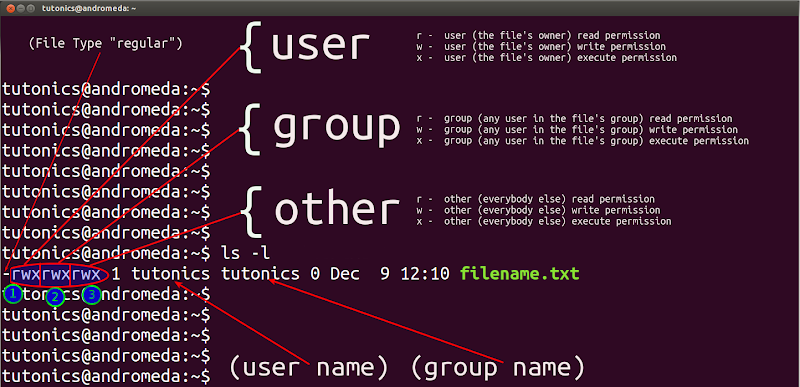
d is for folder, – is for file, | is for link file, b is for equipment, c is for I/O equipment.
r:4, w:2,x:1
for folders, who only has read permission if there is no x(execute), like r– cannot access the folder.x let you can access the folder, like when using cd xxx command.
for files, w permission enable you change the content, but cannot delete the file.
change the system language:
/etc/locale.conf
change the group the files belonged to, the group must in /etc/group: chgrp
eg: chgrp groupname xxx.txt
change the owner of the files, the owner must in /etc/passwd: chown -R will influence the sub folders and files
eg: chown -R ownername xxx.txt
change owner and group:
eg: chown ownername:gourpname xxx.txt
copy a file: cp
-i if there is the same one exists, system will ask your confirmation
cp -i sourcefile destination
-a make it totally the same including the permission information
-s make a shortcut
-u update the destination with newer file.
-d copy shortcut to shortcut
-l copy shortcut’s content(real one, not itself, can be neglected)
change the permission: chmod
eg: chmod -R 777 xxx.txt
some useful permission, for example:
-rwxr—–: chmod 740 filename
-rwxr-xr-x: chmod 755 filename
chmod u=rwx,go=rx filename
chmod u=rwx,g=rx,o=r filename
add all(u,g,o) writing permission:
chmod a+w filename
cancel all execute permission:
chmod a-x filename
create a new file:
touch xxx
delete file(-r includes every son):
rm -r xxx
read and show in command line(-n show line number):
eg: cat -n ~/.bashrc
show from tail to start:
eg: tac ~/.bashrc
show with line number:
nl -b a -n rz 1.txt
delete an empty folder(-p includes every parent empty folder):
rmdir -p xx/xx
go to home folder:
cd = cd~
back to the folder just now:
cd -
print environment path variable to screen:
echo $PATH
add a folder to PATH:
PATH="${PATH}:/root"
get basename:
basename /etc/sysconfig/network
get dirname:
dirname /etc/sysconfig/network
print content to search:
more 1.txt
less 1.txt
use /key word and ?keyword to search after and before, n to repeat the action, pageup and pagedown to turn pages, G go to the last line, g go to the first line, q quit less.
revert less:
tac xxx.csv | less
show head 100 line:
head -n 100 1.txt
excludes the last 100 line:
head -n -100 1.txt
show tail 100 line:
tail -n 100 1.txt
excludes the first 100 line:
tail -n +100 1.txt
show if there is new data input:
tail -f 1.txt
show 11 line to 20 line:
head -n 20 1.txt | tail -n 10
meanwhile show the correct line number:
cat -n 1.txt | head -n 20 | tail -n 10
show the different character code result:
eg: od -t oCc 1.txt
eg: echo testword | od -t oCc
show the mtime(content modifying time) of the files:
ll
show the atime(access time) of the files:
ll --time=atime
show the ctime(change time, state of files, cannot be changed) of the files:
ll --time=ctime
create a new file with a certain mtime:
touch -t 202107041412 xxx.txt
default permission setting:
umask
umask -S
umask means needs to deduct from the max permission:
eg: for folders: 777(drwxrwxrwx) – umask number
for files: 666(-rw-rw-rw-) – umask number
change umask default number:
umask 002
show the hide attributes(-a, -d, -R):
lsattr xxx
change the hide attributes(+a, +i, -a, -i):
chattr +a xxx
SUID(4, u+s): special permission on execution file to make the executioner having owner permission in run-time.
-rwsr-xr-x
if s is S, that means as there is no x, it is meaningless
SGID (2, g+s) : special permission on file/folder to make the executioner having group permission in run-time.
SBIT (1, o+t) : special permission on folder to make only the root and owner can delete the sub folders or files.
to add suid, sgid, sbit, the method like below:
chmod 4755 filename
chmod g+s, o+t filename
get detailed information of file:
file xxx.rpm
search a command file(-a means not the first result, show all):
which -a command
check command installed or not:
eg: command -v sshfs
search a file(-l: list the folder will be checked, -b: only check binary file, -m: only check the file in manual path, -s: only check source file, -u: look for others file):
whereis -l filename
locate/updatedb:
-i(Case insensitive): locate -i partfilename
-c(output only the found number): locate -c partfilename
-l(output line number): locate -l 5 partfilename
-S(output db related information): locate -S partfilename
-r(show regex format): locate -r partfilename
updatedb can get the newest result.
find -mtime n:
find files >= 5days ago: find /var -mtime +4
find files <= 4days ago: find /var -mtime -4
find files 4-5days ago: find /var -mtime 4
-user, -group, -nouser, -nogroup
find the files under a folder which is belonged to a user: eg:
eg: find /home -user username
find a file having keyword:
eg: sudo find / -name "*xxx*"
eg: find / -name *.txt
find the number of a certain type:
find ./*.JPG -type f | wc -l
find a certain type file(s: socket, b,c: equipment, f:file, d: folder, l:link, p: FIFO):
eg: find /run -type s
eg: +, \; means finish
find ./ -type f -name mem* -exec cat {} +
find ./ -type f -name mem* -exec cat {} \;
find file with special permission:
eg: find / -perm /7000
find file size over 1M:
eg: find ./ -size +1M
eg: add -exec ls -l {} \; at last if continue to do some action
physical disk file: /dev/sd[a-p][1-128]
eg: /dev/sda1
virtual disk file: /dev/vd[a-d][1-128]
ext2 is indexed allocation
check the disk volume where a certain folder in(-i: show inode):
eg: df -hT ./
except tmpfs Filesystem, e.g: df -hT -x tmpfs
eg: xfs_quota -x -c "df -h" /home
/dev/shm/ is the folder using memory, usually volume is half of the memory
check the folder size:
eg: du -Sah ./
check all the 1st subfolders and files size(c is for summary):
sudo du -hsc ./*
list sorted results of the big 30:
sudo du -ahx ./ | sort -rh | head -n 30
check the folder size with n depth:
sudo du -h --max-depth n ./
similar to hard copy(-f: force): ln fileName shortcutName
similar to soft copy, making link (-f: force) : ln -s fileName shortcutName
check the disk partition state:
lsblk -fp
check partition table type:
parted /dev/sda print
MBR uses fdisk, GPT uses gdisk
eg: gdisk /dev/sda
display partitions: sudo fdisk -l
refresh partition without reboot: partprobe -s
formatting:
sudo mkfs.ext4 /dev/sda
https://phoenixnap.com/kb/linux-format-disk
mkfs.xfs /dev/sda4
mkfs -t xfs -f /dev/sda4
can be used by Linux and windows: sudo mkfs.exfat -n "label" /dev/sdb1
to install mkfs.exfat:
sudo apt-get install exfatprogs
formatting to FAT32: sudo mkfs.vfat -v -I -F 32 /dev/sdb4
can be used by Linux and windows(single file max 4GB):
sudo mkfs.vfat -I /dev/sda
change the label of FAT32 disk: fatlabel /dev/sdb4 UDISK
change the label: sudo e2label /dev/sda labelName
check the cpu core number:
grep 'processor' /proc/cpuinfo
check xfs file system(should in unmounted state, when the system is in trouble): xfs_repair -n /dev/sda4
mount a partition:
eg: mount UUID="5748de1d-9e6c-420d-ba04-6253d083e414" ./emptyFolderName
mount with a special permission information: eg:
sudo mount -t exfat -o umask=0022,gid=groupID,uid=userID /dev/sda1 /home/user/somewhere
see: Mount device with specific user rights
mount with a certain language code:
eg: mount -o codepage=950,iocharset=utf8 UUID="35BC-6D6B" /data/usb
when the root is read-only, you need to do remount:
mount -o remount,rw,auto /
mount -n -o remount,rw /
mount a certain folder to another:
https://linuxconfig.org/howto-mount-usb-drive-in-linux
eg: sudo mount --bind /home/userName/mountTest /home/userName/SImA/SImA-1.1.10/migration
unmount a device(-f: force):
eg: umount /run/media/user/U
change the xfs disk’s label(-l is to show, -u is to show UUID, -U is to use UUID):
eg: xfs_admin -L labelname /dev/sdb4
generate a new UUID: uuidgen
to change uuid and label for ext4, use tune2fs, eg: tune2fs -L labelname /dev/sdb4
to mount automatically, change the content in:
/etc/fstab
to mount dvd.iso files:
eg: mount -o loop /tmp/xxx.iso /data/xxx
to mount a big file: eg: mount -o loop UUID=”xxx“ /mnt
check free memory in detail: free -h
total memory: grep MemTotal /proc/meminfo
check swap equipment in detail: swapon -s
grep SwapTotal /proc/meminfo
.zip file unzip:
unzip -P password xxx.zip -d ./targetFolder/
check the content in zip file:
unzip -l xxx.zip
zip a file(-v show the detail information, -d unzip, -1: quick but lower compressed, -9: slow but well compressed, default is 6, -c: show to screen and can be redirected):
eg: gzip -v textfile
eg: gzip -d testfile.gz
eg: gzip -9 -c xxx > xxx.gz
unzip img.gz:
gunzip xxx.img.gz
show the zip file’s content:
eg: zcat xxx.gz
find the content in zipped file:
eg: zgrep -n ‘anycontent‘ xxx.gz
bzip2(-k is to remain the original one) is more compressed than gzip, command is almost the same.
eg: bzip2 filename
show the zip file’s content:
eg: bzcat filename.bz2
xz(-v show detailed information, -k remain the oringal one) is more compressed than bzip2
eg: xz filename
show the zip file’s content:
eg: xzcat filename.xz
unzip tgz file:
eg: tar zxvf xxx.tgz
use tar(-j for bz2, -J for xz, -z for gz, -p keep ther original permission, –exclude= for excluding unwanted one) to make zip folder:
tar -jcv -f filename.tar.bz2 object_folder1 object_folder2
to check what is inside:
tar -jtv -f -filename.tar.bz2
to unzip:
tar -jxv -f filename.tar.bz2 -C destination_folder
to unzip one in the zipped file:
tar -jxv -f filenme.tar.bz2 thatFile
to unzip .tar.gz file: eg:
tar -xvzf shga_sample_750k.tar.gz
to unzip tar.xz file:
tar xf linux-3.12.2.tar.xz
to unzip .tar file, eg:
tar -xvf xxx.tar -C ./
view the contents of tar.gz:
tar -tf filename.tar.gz
back up xfs file system(level 0 means totall backup):
eg: xfsdump -l 0 -L boot_all -M boot_all -f /srv/boot.dump /boot
restore the xfs file system:
eg: xfsrestore -f /srv/boot.dump -L boot_all /tmp/boot
show the difference between two folders:
eg: diff --brief --recursive dir1/ dir2/
eg: diff -r /boot /tmp/boot
make iso file(-r: keep permission information, -V: label, -o: img filename, -m: exclude file or folders, -graft-point: divided separately by rules):
eg: mkisofs -r -V ‘labelname’ -o ./xxx.img -m ./excludefile -graft-point /a=./a /b=./b
check iso information:
eg: isoinfo -d -i ./xx.img
totally copy including the permission:
eg: rsync -a /run/media/a ./c
rsync -avz /backUpFolder userAccount@hostname:/backUpToFolder
refresh and copy the new files to the destination:
eg: rsync -ur --progress --info=progress2 source_folder/ destination_folder/
use like cp -a:
eg: rsync -ah --info=progress2 --info=stats2 source_folder/ destination_folder/
completely make a mirror:
eg: dd if="/etc/passwd" of="/tmp/passwd.back"
cpio can backup equipment file:
to backup, eg: find / | cpio -ocvB > /dev/st0
to restore, eg: cpio -idvc < /dev/st0
change the pure txt file from dos to linux based(-k: keep same mtime information, -n: remain original file):
eg: dos2unix -k -n sourcefilename destinationfilename
change the pure txt file from linux to dos based (-k: keep same mtime information, -n: remain original file) :
eg: unix2dos -k sourcefilename
change txt content from different language code(-f: from code, -t: to code):
eg: iconv -f big5 -t utf8 originalfilename -o newfilename
iconv --list to check all the support codes.
check support shell:
cat /etc/shells
cat /etc/passwd
check command history:
cat ~/.bash_history
show recent n lines history:
history n
Delete specific command No. n:
history -d n
Save changes:
history -w
to add the timestamp in history result, add the content below to .bashrc:
HISTTIMEFORMAT="%Y-%m-%d %T "
then repeat the command line n:
eg: !123
check short command:
alias
set a new short command:
eg: alias lm='ls -al'
cancel alias:
eg: unalias ll
check the command in detail:
eg: type -a ls
bash short key:
The List Of Useful Bash Keyboard Shortcuts
ctrl+u: delete left part
ctrl+k: delete right part
ctrl+a: to the first
ctrl+e: to the end
cancel environment variable: eg: unset xxx
add path environment variable:
eg1: PATH=$PATH:/home/dmtsai/bin
eg2: PATH="$PATH":/home/dmtsai/bin
eg3: PATH=${PATH}:/home/dmtsai/bin
make subprocess use the variable:
export variablename
show all the environment variable:export
generate a random number: (1-100)eg:
declare -i number=$RANDOM*100/32768;echo $number
check current shell’s PID: echo $$
check the error code of last command: echo $?
show cpu and system edition:echo $MACHTYPE
show support locale:locale -a
let the user input the variable content(-p: hint sentence, -t: showing time(s)):
eg: read -p “Please input your name: ” -t 30 name
declare a int variable: eg: declare -i sum=1+2+3
show a variable attribute: eg: declare -p variable
delcare an array: eg: var[1]=”a“, var[2]=”b“…
show the current limit: ulimit -a
history max lines number: $HISTSIZE
show command order: eg: type -a ls
change bash welcome information: /etc/issue
change bash welcome information for remote login: /etc/issue.net
change additional welcome information, only root can: /etc/motd
for login shell: os check config file order: /etc/profile, ~/.bash_profile or ~/.bash_login or ~/.profile, ~/.bashrc
for non-login shell: os check config file: ~/.bashrc
set the config file and let it do some after logout bash: ~/.bash_logout
show the shortcut key: stty
stdout, stderr: eg: find /home -name .bashrc > list_right 2> list_error
stdout and stderr to the same file:
eg: find /home -name .bashrc &> list
eg: find /home -name .bashrc > list 2>&1
throw the content: eg: find /home -name .bashrc 2> /dev/null
stdin from the file: eg: cat > catfile < ~/.bashrc
define the end symbol: eg: cat > file << “eof“
if cmd1 pass, then do cmd2: cmd1 && cmd2
if cmd1 fail, then do cmd2: cmd1 || cmd2
to select by command1’s result: command1 && command2 || command3
get a certain command from a line(here 3 is the third one, 5 is the fifth one, c means choose by character):
eg: echo ${PATH} | cut -d ‘:‘ -f 3,5
eg: echo ${PATH} | cut -c 3-5
select keywords content out(-a: check binary file by text, -c: count found words, -i: ignore case, -n: with line number, -v: opposite selection, –color=auto: show with color):
eg: last | grep -v ‘reboot‘
sort the result(default sort by the first column, -k 2: sort by 2nd column, -n: sort by number, -M: sort by month, -f: ignore case, -b: ignore first space, -r: reversed order, -t: separation symbol, -u: if same just show one):
eg: last | sort -k 2
select out repeated data(-c: count, -i: ignore case):
eg: last | cut -d ‘ ‘ -f 1 | sort | uniq -c
how many lines, words, chracters in the content:
eg: cat /etc/passwd | wc -lwm
save while output(-a: add to the end of the original destination file):
eg: ls -l / | tee -a ~/homefile | more
replace words(-d: delete the words, -s: no repeated words): eg(a -> A): last | tr ‘[a-z]‘ ‘[A-Z]‘
replace tab by space: eg: cat /etc/man_db.conf | col -x | cat -A | more
replace tab by several spaces(-t: space number): eg: xxx | expand -t 6 filename
join by column: eg: join -1 2 -2 1 1st.txt 2nd.txt
simple join two file, default by tab(-d: default join symbol is tab): eg: paste file1 file2
split files(-b: unit size, like 1b,1kb,1mb, -l: line number): eg: split -b 300k filename prefixName
recover from split files: eg: cat prefixFile* >> finalFile
use for command can’t use pipe(-0: set for special separation symbol, -e: set for EOF, -p: need confirmation each time, -n: how many parameters each time it needs): eg: find /usr/sbin -perm /7000 | xargs ls -l
check user’s UID/GID information: eg: id root
check content lines in the file(-A: includes lines after, -B: includes lines before):
eg: dmesg | grep -n -A3 -B2 --color=auto 'memory'
check the kernel information: dmesg
select by regular express(3,$d means from 3 until last line delete): eg: nl regular_express.txt | sed '3,$d'
replace by several lines(line 2-5 are replaced by xxx):
eg: nl regular_express.txt | sed '2,5c xxx'
select out several lines(line 2-5 are selected):
eg: nl regular_express.txt | sed -n '2,5p'
insert content into lines(xxx is inserted after line2):
eg: nl regular_express.txt | sed '2a xxx'
insert content into lines(xxx is inserted before line2):
eg: nl regular_express.txt | sed '2i xxx'
to replace some words(-i: sed -i… means directly change on that file and save automatically):
eg: filecontent | sed 's/wordsNeedToBeReplaced/newWords/g'
find all files containing specific text in a folder:
grep -rnw './' -e 'searchPattern'
egrep means grep -E, can use advanced regular express, eg: egrep -v ‘^$|^#’ regular_express.txt
extract content by column(the eg is 1 and 4 col, NF: how many column it has, NR: current row, FS: separation symbol): eg: who | awk '{print $1,$4}'
eg: cat /etc/passwd | awk 'BEGIN {FS=":"} $3<10 {print $1 "\t" $3}'
show column, -F means delimiter, $NF means last column, $1 means first column: eg:
cat /etc/passwd | awk -F ':' '{print $1, $NF}'
compare file by line, usually for ASCII pure text(-b: neglect blank, -B:neglect blank line, -i: ignore case): eg:
diff -bBi file1 file2
compare file by byte, can be used for execution file(-l: show all difference):
cmp -l file1 file2
make patch:
eg: diff -Naur file1 file2 > result.patch
refresh to new file(N means nth folder, if in the same folder N is 0): eg: patch -pN < patchFile
restore to old file: eg: patch -R -pN < patchFile
shell script starts with which bash you want to use: eg: #!/bin/bash
run shell script in this bash: eg: source test.sh
run shell script in son-bash: eg: sh test.sh
test file exist: eg: test -e filename
https://www.computerhope.com/unix/test.htm
check open service ports: netstat -tulnp | grep -n LISTEN
check shell script: eg: sh -n xxx.sh
show shell script before execute: eg: sh -v xxx.sh
show shell script used: eg: sh -x xxx.sh
show current user belonged groups: groups
switch to new group(exit to go back): newgrp groupName
register new account: useradd xxx
change password: passwd userName
show password information: chage -l userName
delete user account(-r: include home): userdel -r username
change shell(-l: show available shell): eg: chsh -s /bin/csh
add group: groupadd groupName
delete group: groupdel groupName
set group password(-A: make user become group administrator): gpasswd groupName
check ACL permission: https://segmentfault.com/a/1190000022541406
getfacl filename
use other user to implement command: eg: sudo -u userName touch xxx
make users and groups having root power automatically:
change /etc/sudoers, use the below:
sudo visudo
add sth like, eg:
root ALL=(ALL) ALL
%wheel ALL=(ALL) ALL
put user into a group: eg: usermod -aG groupName userName
remove user from a group:eg: gpasswd -d userName groupName
check login log: lastlog
restart atd(for one time) service: systemctl restart atd
start while power on: systemctl enable atd
check current state of atd: systemctl status atd
check whether daemon is enabled or not: systemctl is-enabled docker.service
execute scheduled task: at now + 2 minutes, echo “test” > /dev/pts/0, ctrl+d
show current task: atq
delete current task: atrm numberID
check cpu consumption: uptime
check cycled scheduled task: crontab -l
set scheduled task: crontab -e
eg(every 1 minute): */1 * * * * echo "test" > /dev/pts/0
you can change it here: /var/spool/cron/userName
check scheduled task log: cat /var/log/cron
check process state: ps -l
the maxlogins connection is written in: /etc/security/limits.conf
pause a process: ctrl+z
show the background jobs(-r: show only running jobs, -s: show only stopped jobs):
jobs -l
bring background task to foreground: eg: fg %1
start task again in background : eg: bg %1
kill a task directly: eg: kill -9 1
kill a task normally: eg: kill -15 1
reboot a pid process: eg: kill -1 1
kill pid by name:eg: killall -i -9 bash
process persistent in background even after shell dies accidentally: eg: nohup pycharm.sh &
static check the process related to this bash: ps - l
static check all the process: ps aux
dynamic (every 1s)check all the process: top -d 1
process tree: pstree -Aup
check process’s pid: ps aux | grep 'processName' | grep -v 'grep' | awk '{print $2}'
check if the process has restarted: tail -5 /var/log/messages
create a process with a certain nice value:eg: nice -n -5 vim &
change the nice value: eg: renice -5 PIDNumber
check the listening port: netstat -tulnp
dynamic check the hardware information every 1 second(-d: harddisk state): vmstat 1
check what is using the file: eg: fuser -muv /proc
check what is using the file then kill it: eg: fuser -mki /home
find user is using which file: eg: lsof -u username -a
find folder is used by which process: eg: lsof +d /dev
check pid number of process name: eg: pidof systemd rsyslogd
check the SELinux permission of this folder: ls -Z
check process SELinux information: ps -eZ
current SELinux state: getenforce
SELinux policy(/etc/selinux/config): sestatus -vb
getsebool -a
change selinux permission: eg: setsebool -P httpd_enable_homedirs 1
recover default SELinux permission: eg: restorecon -Rv /etc/cron.d
check default SELinux permission setting(-a: add context, -m: mend context, -d: delete context): semanage fcontext -l
check how the port is managed by selinux:
eg: sudo semanage port -l | grep 22
add a port open in selinux:
sudo semanage port -a -t ssh_port_t -p tcp yourPortNumber
delete a port open in selinux:
sudo semanage port -d -t ssh_port_t -p tcp yourPortNumber
check installated software: eg: rpm -qa | grep setroubleshoot
start service:
eg: systemctl start atd.service
stop service:
eg: systemctl stop atd.service
restart service:
eg: systemctl restart atd.service
refresh service config without restart:
eg: systemctl reload atd.service
start service automatically while start os:
eg: systemctl enable atd.service
enable service and start meanwhile:
eg: systemctl enable --now docker
disable automatical start while start os:
eg: systemctl disable atd.service
check the state of the service:
eg: systemctl status atd.service
force to disable the service:
eg: systemctl mask cups.service
recover the forced disabled service:
eg: systemctl unmask cups.service
check all the service on the os:
systemctl list-units --all
systemctl list-unit-files -all
systemctl list-unit-files --type=service
check which mode you are using:
systemctl get-default
change mode to graphic when start os:
sudo systemctl set-default graphical.target
change mode to pure command when start os:
sudo systemctl set-default multi-user.target
swap the mode without reboot os:
sudo systemctl isolate graphical.target
sudo systemctl isolate multi-user.target
check the dependencies between services:
sudo systemctl list-dependencies
check the socket service:
systemctl list-sockets
check service with its port:
cat /etc/services
log for crontab in: /var/log/cron
log for import information or error: /var/log/messages
check the living log saved in memory:
journalctl -f
check the daemon log: eg:
journalctl -u sshd
journalctl -u docker.service --since "2022-10-05 10:10:00"
check the loaded kernel module: lsmod
check a certain kernel module information:eg: modinfo drm
load kernel module(-c: list, -r: remove): eg: modprobe vfat
show network card information: nmcli connection show
check hostname information: hostnamectl
eg: hostname -f
change hostname: eg: hostnamectl set-hostname test.local
show time information in detail: timedatectl
change timezone: eg: sudo timedatectl set-timezone "Asia/Tokyo"
change the time: eg: timedatectl set-time "2021-08-25 17:52"
check the system locale: localectl
check the bash locale: locale
change the system locale:eg: localectl set-locale LANG=en_US.utf8
check the detailed hardware information: dmidecode -t 1
check usb state: lsusb -t
sudo lsusb -v -s busNumber:deviceNumber
refresh hardware instruction file: update-pciids
check the cpu and hard disk usage information: iostat -mt
mail is saved in: /var/spool/mail/
install gcc: yum groupinstall "Development Tools"
show information of groupinstall of sth: eg: yum groupinfo "Development Tools"
remove groupinstalled sth: eg: yum groupremove "Development Tools"
compile c file:
eg:gcc -O -c hello.c, then gcc -o hello hello.o
if used library: eg: gcc sin.c -lm -L/lib -L/lib64 -I/usr/include
check the related lib: eg: ldd -v /lib64/libc.so.6
to verify the file: eg: md5sum google-chrome-stable_current_x86_64.rpm
install by rpm: eg: rpm -ivh xxx.rpm
test possible to install for rpm: eg: rpm -ivh xxx.rpm --test
upgrade existed packages: eg: rpm -Fvh xxx.rpm
check already installed packages: rpm -qa
check the package information in detail: rpm -qi
check the pakcage installed directory information:rpm -ql
check the file is belonged to which package: eg: rpm -qf /bin/sh
verify installed package : eg: rpm -V logrotate
delete package: eg: rpm -e pam
refresh rpm database: rpm --rebuilddb
check software information: eg: yum info mdadm
check the software which can be updated: yum list updates
check a certain software state: eg: yum list chrome*
install a software: eg: yum install pam-devel
update a certain software: eg: yum update pam-devel
delete a certain software: eg: yum remove pam-devel
check firewall setting: firewall-cmd --list-all
open firewall: eg: firewall-cmd --add-service="http"
open firewall permanently: eg:
sudo firewall-cmd --permanent --add-service="http"
sudo firewall-cmd --permanent --add-port=portNumber/tcp
How to remove a port in firewall
How to check if a port is in use on Linux:
https://www.cyberciti.biz/faq/how-do-i-check-if-a-port-is-in-use-on-linux/
eg: sudo netstat -tulpn | grep LISTEN
sudo netstat -tulpn | grep :443
ss -tulpn
How to create a sudo user on centos:
https://www.digitalocean.com/community/tutorials/how-to-create-a-sudo-user-on-centos-quickstart
show current tty: tty
show current logged in users: w
show the mail stream on console:
eg: tail -f /var/spool/mail/username
How to share folder between host and vmware:
sudo vmhgfs-fuse .host:/sharedFolderName /mnt/hgfs/sharedFolderName -o allow_other -o uid=1000
check software installed on debian: apt list --installed
temporarily install in english environment: eg: LANG=en_US ./runInstaller
How to Set Up SSH Keys on Debian 10:
How to Fix Connection Refused by Port 22 Debian/Ubuntu
https://linuxize.com/post/how-to-set-up-ssh-keys-on-debian-10/
check the ssh log: journalctl -u sshd
check the failed login log: lastb -adF
check the login log: last
How to install and enable SSH server on SUSE:
https://www.simplified.guide/suse/enable-ssh
check the registered repos:
yum repolist all -v
repos saving directory: /etc/yum.repos.d
check running GUI environment:
echo $XDG_CURRENT_DESKTOP
curl set with proxy:
how to use pscp to copy file from host to guest:
pscp.exe -pw MyPassword root@127.0.0.1:/etc/myfolder/myfile.opt "C:\download files"
you can put with putty session in a same folder and use:
pscp.exe -C -load “puttySessionName” “D:\xxx.zip”accountName@hostname:/home/accountName/xxx/
use wget to download from a list written in a file:
wget -i xxxx.txt
use wget to download with breakpoint continue(-c), rename the file(-O), assign the path(-P):
wget -c --no-check-certificate -O xxx.iso -P /home/xxx/Downloads/ https://xxxx.iso
How to configure wget for a proxy:
How to use wget behind a proxy
How to configure yum for a proxy:
set the signal which will affect the process:
eg: trap “killall background“ EXIT
https://www.cnblogs.com/liuhedong/p/10663842.html
open the bluetoothctl shell:
https://linuxcommandlibrary.com/man/bluetoothctl#tldr0
bluetoothctl
add the content at the last line of a file: eg:
echo 'just a test!' >> ./test.txt
truncate file, empty the file content: eg:
sudo find /var/log -type f -name *.log -exec truncate -s 0 {} +
show block information and UUID: blkid
change the content in a file(-i to save, / or . is delimiter): eg:
sed -i 's/changeFromWord/changeToWord/' targetFileName.txt
echo "test" | sed 's/te/fir/'
sed 's./etc..' paths.txt
run sudo inside a script without password:
echo "sudoerPassword" | sudo -S yourCommand
force install by .deb file:
dpkg -i --force-depends xxx.deb
check public IP address: curl ifconfig.me -s
How to install and enable EPEL repository on a CentOS/RHEL 7
How To Enable Remote Desktop Protocol Using xrdp on Ubuntu 22.04
securely delete files, directories, and block devices by overwriting their contents with random data(overwriting its contents 3 times with random data. The -v option will display progress information, and the -z option will perform a final overwrite with zeroes to hide the fact that the device was shredded.): eg:
sudo shred -n 3 -v -z /dev/sdb
back up image file: eg:
sudo dd if=/dev/mmcblk0 of=xxx.img bs=4M;sync
sudo dd if=/dev/mmcblk0 | gzip > xxx.img.gz
restore the image file to hard disk: eg:
sudo dd if=xxx.img of=/dev/mmcblk0 bs=4M;sync
gzip -dc xxx.img.gz | sudo dd of=/dev/mmcblk0 status=progress
show boot-up performance:
systemd-analyze blameMake Ubuntu Not Go in Suspend When Laptop Lid is Closed /etc/postfix/main.cf: No such file or directory There are stopped jobs (on bash exit) make a portal door: eg:sudo sshfs -o IdentityFile=/home/ubuntu/.ssh/xxx.pemunmount the portal door: eg:ubuntu@ipAddress:/home/ubuntu/remoteFolder localFoder/sudo fusermount -u ./localFodercentos7 install special python version set sudoer account without password:
sudo vi /etc/sudoers
# like below:
%sudo  ALL=(ALL) NOPASSWD: ALL
scan the change every 3 seconds and show the result:
eg: watch -d -n 3 'free -h'
check environment variables: env
kill the login session: sudo pkill -u userName
sudo pkill -t pts/0
port used by software name:
sudo lsof -i -P -n | grep LISTEN
check entire tmux output log: tmux capture-pane -pS - | less
to test connection: eg: nc -v yourIP yourPort
check ufw status:
sudo ufw status numbered
enable ufw:
sudo ufw enable
reload firewall:
sudo ufw reload
delete rule in ufw:
sudo ufw delete IDNumber
add open port in ufw:
sudo ufw allow portNumber
sudo ufw allow portStart:portEnd
sudo ufw allow portStart:portEnd/tcp
sudo ufw allow from 192.168.2.0/24 to any port portStart:portEnd
sudo ufw allow from 192.168.2.0/24 to any port portStart:portEnd
to limit:
sudo ufw limit from 172.16.7.133 to any port 80 proto tcp
alow a certain IP address:
sudo ufw allow from 192.168.2.0/24 to any port portNumber
make a screen and export the log:
screen -L -S your_session_name
“crtl+a”, and “d” to detach the screen.
check the existing screen:
screen -ls
recover to the screen:
screen -r your_session_ID_or_name
if you copy and use the certs in other windows PC:
use powershell:
icacls.exe certName /reset
icacls.exe certName /grant:r "$($env:username):(r)"
icacls.exe certName /inheritance:r
How to do the CHMOD 400 Equivalent Command on Windows:
solve the dns issue:
sudo systemctl restart dhcpcd
show the MAC address:
ip link show
print header and last several lines:
(head -n 1 xxx.csv && tail -n 10 xxx.csv)
print header and last several lines with certain columns:
(head -n 1 xxx.csv | awk -F, -v OFS=',' '{print $3, $51}' && tail -n 10 xxx.csv | awk -F, -v OFS=',' '{print $3, $51}')
7z a -p[your-password] -mhe=on [archive-name].7z [files-to-archive]
7z a -tzip -p[your-password] [archive-name].zip [files-to-archive]
to unzip:
7z x -p[your-password] [archive-name].zip
7z x -p[your-password] [archive-name].rar
7z x -p[your-password] [archive-name].7z
ark -b -a [archive-name].rar
show the supported hostkeyalgorithm:
ssh -Q sig | tr '\n' ',' | sed 's/,$/\n/'
to enable the supported algorithm:
edit /etc/ssh/sshd_config, add PubkeyAcceptedAlgorithms +ssh-rsa at the bottom, then restart sshd: sudo systemctl restart ssh
edit /etc/ssh/sshd_config, add DenyUsers ubuntu at the bottom, then restart sshd to prohibit a certain user from login
show until to the 2nd folder:
tree -L 2 folder/
disable representation of a certain user in login:
sudo vi /var/lib/AccountsService/users/[userName]then change SystemAccount to be true.
SystemAccount=truecreate key and cert for https:
openssl genrsa -out serverName.key 4096
openssl req -x509 -new -key serverName.key -out serverName.pem -days 365
get free certs from Let’s Encrypt:
sudo apt-get install certbot
sudo certbot certonly --standalone -d [yourDomain]
use ImageMagick to make electronic signature:convert input.jpg -fuzz 55% -transparent white output.png
transfer jpg to pdf:
convert image1.jpg image2.jpg image3.jpg output.pdf
clear the password in pdf:
qpdf --password=[YOUR_PASSWORD] --decrypt input.pdf output.pdf
list all tmux sessions:
tmux lskill the specific tmux session by name or ID:
tmux kill-session -t session-nameTo split the PDF into individual pages:
pdfseparate x.pdf x_%d.pdftest API speed:
curl -o /dev/null -s -w "%{time_starttransfer}\n" [API URL]check the strength of wifi signal:
iwconfig | grep Signalconnect wifi by command:
sudo systemctl enable --now NetworkManager

# List all available Wi-Fi networks in the area.
nmcli dev wifi list

# Connect to a specified Wi-Fi network using its SSID and password.
nmcli dev wifi connect <SSID> password <password>

# Display a list of all active network connections, showing their status and other details.
nmcli con show

# Disconnect the specified network interface from its network.
nmcli dev disconnect iface <interface_name>
Monitor partition disk activity:
How to Monitor Disk I/O performance in Linux
iostat -m -p nvme0n1
Check disk activity:
sudo iotop
Monitor network traffic:
sudo nethogs yourNetInterFaceName
Displays the current IP-to-MAC address mappings in the ARP cache for local network communication:
arp -adisplay detailed information about file:
stat /path/to/filedownload files in the FTP server:
wget -r --ftp-user=yourID --ftp-password='yourPassword' ftp://yourdomain.com:80 ./hold and unhold apt upgrade for certain software (eg: vsc):
sudo apt-mark hold "code/stable"
sudo apt-mark unhold "code/stable"
check hold state:
apt-mark showholdlist top 10 memory-consuming processes:
ps -e -o pid,ppid,comm,%mem,rss,%cpu --sort=-%mem | head -10ps -e -o pid,ppid,comm,rss,%cpu --sort=-rss | head -n 10 | awk 'BEGIN {printf "%-8s %-8s %-15s %-12s %-8s\n", "PID", "PPID", "COMMAND", "MEMORY", "CPU%"}
NR>1 {printf "%-8d %-8d %-15s %-10.2fGB %-8.1f\n", $1, $2, $3, $4/1024/1024, $5}'conduct a real-time test of the USB camera:
ffplay /dev/video0This stores crash data files:
/var/lib/apport/coredumpCheck which process is using port:lsof -i:portNumber
Kill the process occupying port in one command:fuser -k portNumber/tcp
 KAGAYA's Blog